
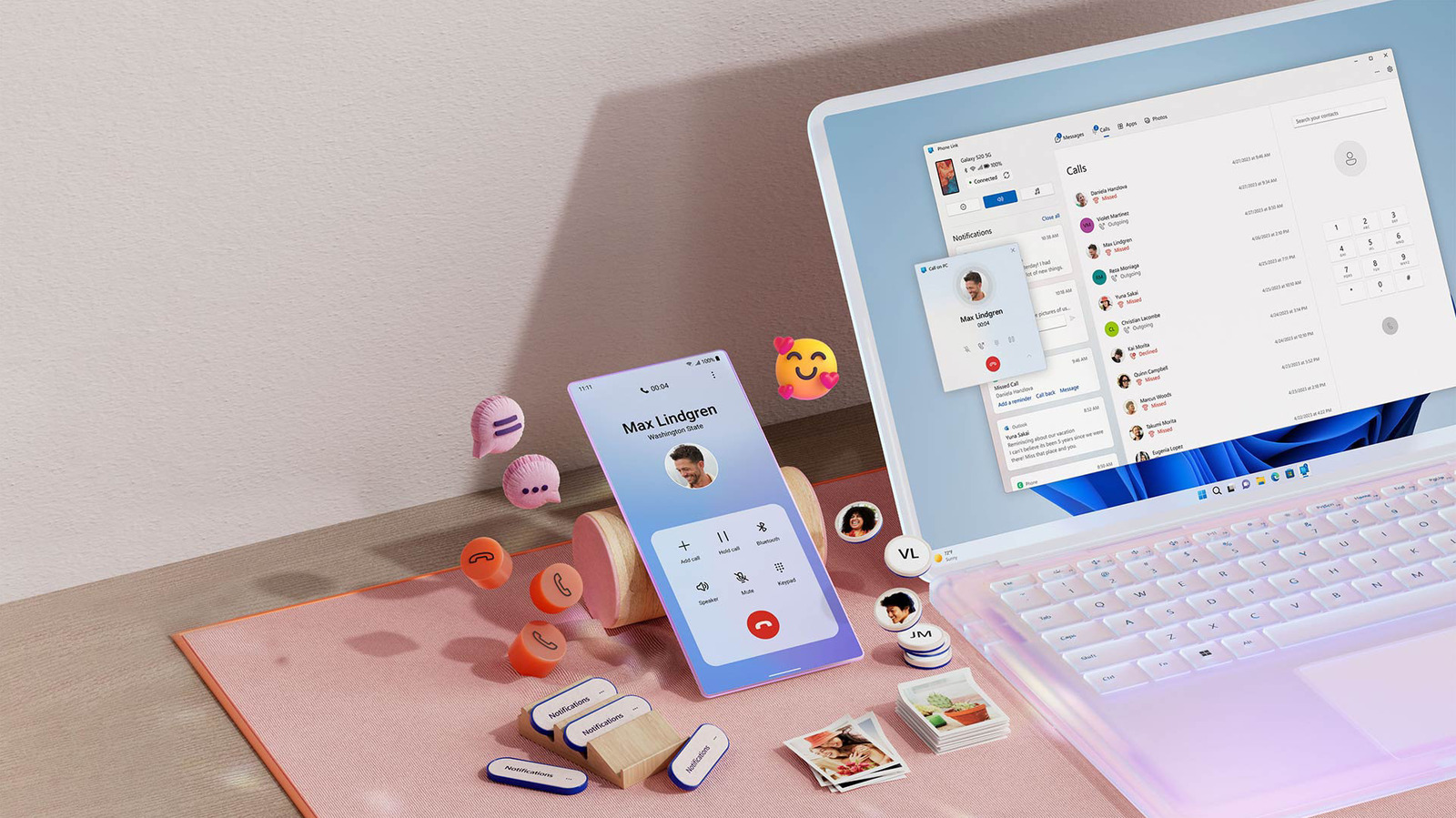
If you have an iPhone, Phone Link is limited to calling and texting, as well as viewing and dismissing your phone's notifications. That's plenty for a lot of people. To enable or disable any of these functions, open Phone Link on your PC, then click Settings (the gear icon) and choose Features.
Android users get additional power, including the ability to view and copy the last 2,000 photos in their camera roll. That might not sound like much, but it avoids having to sync your Google Photos library directly to your storage drive. If you want to copy a single image into a document or your personal stash, this is a simpler method — once you've got Phone Link configured, that is.
Other Android-exclusive tricks include putting your phone into Do Not Disturb, muting your device when it's playing sound and Now Playing controls for music. It feels like a much more robust solution compared to the basic implementation for iPhone.
Regardless of the phone you're using, it's worth going into Phone Link and visiting the options under Settings > General. There, you're able to adjust the amount of private data displayed in banners, and whether numbered badges are displayed for unread messages and notifications. Those can be irritating, sometimes giving the impression there's new info to view when it's actually the same material that's been sitting on your phone's lock screen for hours. Phone Link labels everything "unread" until you specifically check or dismiss it.
Meanwhile, you can fight back against spam calls if they're disrupting you while you work.