
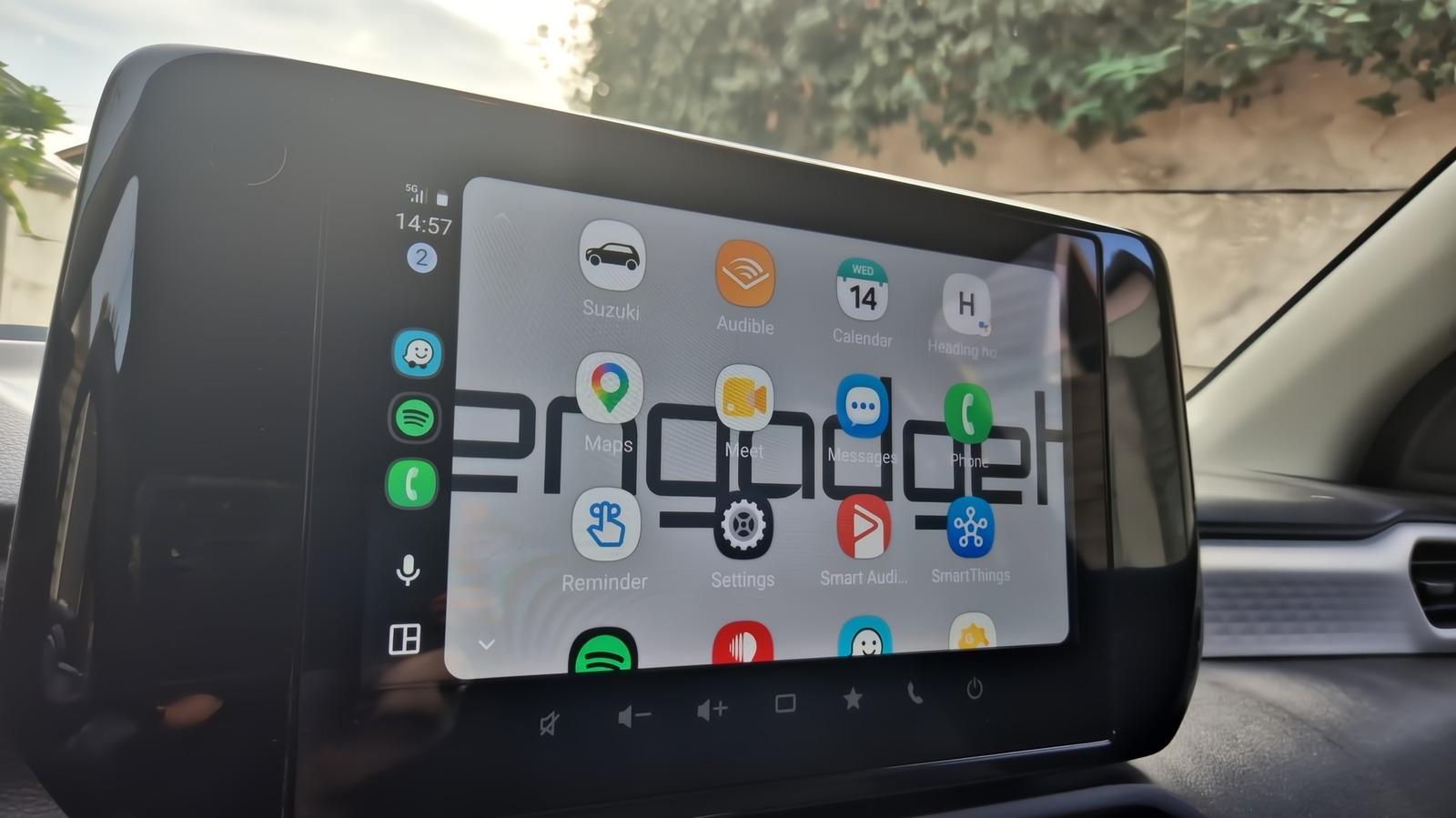
Android Auto's many settings let you make even more decisions on how the screen looks in your car. If you scroll down to Change layout you can choose whether the map or your media player sits closer to the driver. This matters quite a bit if you rely heavily on turn-by-turn navigation, keeping the map within easy glance distance and reducing how long your eyes leave the road. If you prioritize podcasts and playlists on the go, the opposite setup may be preferred. Make sure to test both configurations against your car's screen size because wider displays handle split layouts better than smaller ones.
If you're tired of your Android Auto screen looking boring, there's a way to fix that too. Some years ago, you could pick one of many wallpapers Google had preloaded. Nowadays, you can make your car's infotainment screen display your phone's wallpaper. You'll need to make this choice from your car, though, because you can't adjust it from your phone. Launch Android Auto, go to Settings and flip the toggle for the Use Phone's Wallpaper feature. Immediately, the background will mimic that of your phone. It's not much, but it's better than a blank space.
The Android Auto settings also make it possible to force day or night mode on your map. By default, the system automatically toggles between them based on ambient light and time of day. You can do this from the Maps section in the Android Auto settings. Also, if you no longer want Android Auto to automatically start media playback when you start driving, you can flip the switch on that feature too (under the Startup section).
None of these fixes take more than a couple of minutes individually, but together they reshape how Android Auto functions. Set up some widgets, adjust the layout, mirror your wallpaper and you get a way more pleasant driving experience.