
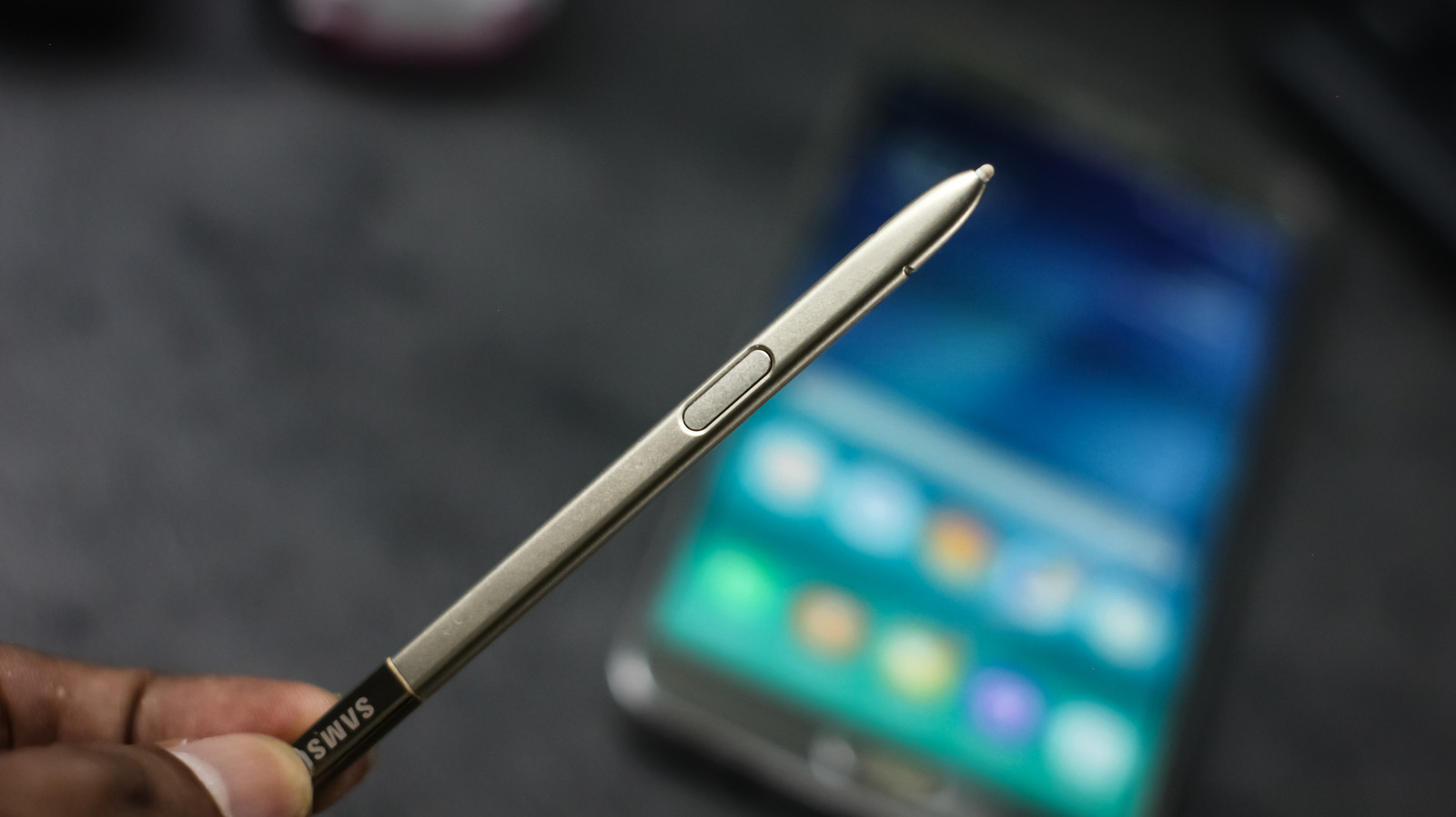
To prepare the S Pen Pro for tracking, charge it, select the appropriate mode and hold its Connection button for three seconds. Tap Connect when prompted and make sure you're signed in to your Samsung account.
Next, open SmartThings, head to Life > Find and open the three-dot menu. Select Settings > Allow devices to be found and enable Offline finding. Offline finding needs to be enabled first, so you'll want to do this before losing the pen, obviously.
If you lose the S Pen Pro:
1. Open SmartThings > Life > Find and select the S Pen Pro, swiping between device cards or opening the device menu if needed.
2. Tap Refresh to update its location on the map.
3. Select More > Navigate for directions, or swipe up on the pen's details to access Navigate and Blink light, which flashes its indicator when searching nearby.
The separate Samsung Find app also lists the S Pen Pro under its Devices tab.
Participating devices are Galaxy phones or tablets with offline finding enabled. They can detect the powered-on S Pen Pro over Bluetooth and anonymously relay its location to Samsung without pairing with a pen. The setting may be selected by default when you sign in to (or sign up for) a Samsung account, but users can turn it off, so not necessarily every Galaxy phone is connected. The map may show its last reported location. Samsung also offers Encrypt offline location for privacy.
For other S Pens, refer to Settings > Advanced features > S Pen > More S Pen settings > Warn if S Pen is left behind (if available). As I mentioned earlier, the S26 Ultra can notify you if the pen is not placed in its slot for a while after the display is turned off. It won't pinpoint the pen's location, but a warning before you've gone too far could save you some searching.
If the pen is gone for good, make sure that the replacement pen you buy is compatible with your device. Samsung currently lists a replacement Galaxy S26 Ultra S Pen for $55 in the US.