
Speaking of hubs and docks, don't forget that those often require their own power supplies. And even if they don't, things can go wrong with device chains, since of course they have to successfully transmit power or data across multiple hops. We recently had an experience with a Thunderbolt dock in which a wireless mouse receiver became unusable until it was plugged directly into a laptop — never mind that an SSD on the dock was doing just fine. It's always safer to skip the middleman if you have enough ports free.
Make sure that macOS is fully up-to-date by going to Apple menu > System Settings > General, then clicking on Software Update. Bugs or driver compatibility issues could hypothetically be interfering. Some accessories may also rely on proprietary software to do much of anything, in which case you'll want to make sure the latest version of that is installed. Check the Mac App Store or a manufacturer's website. External cards and drives need to use file system formats compatible with macOS, namely APFS, FAT or ExFAT.
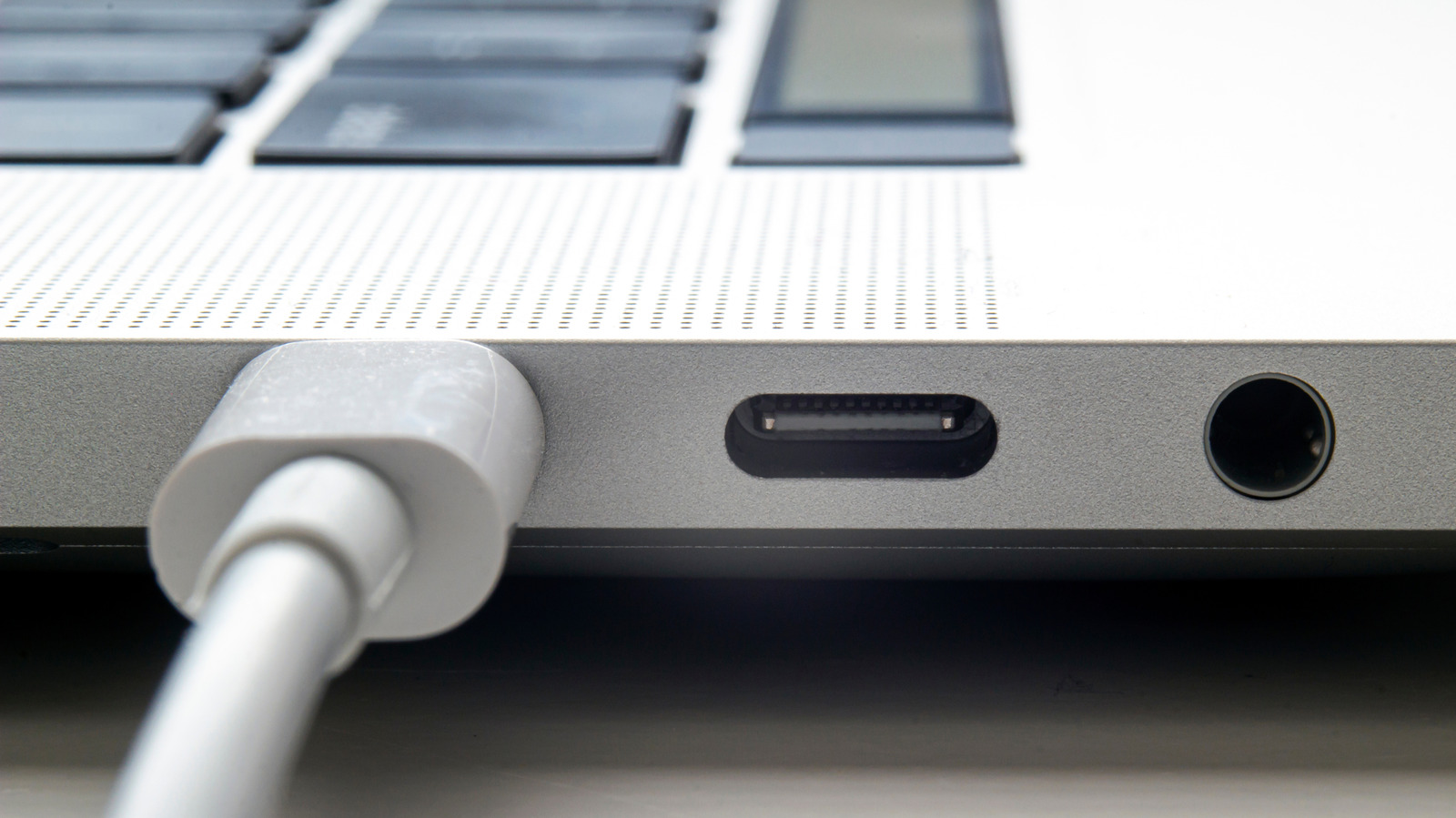
Lastly, be sure that you're using the right type of USB cable for a device's power and bandwidth requirements and that there's no damage or debris interfering with either cables or ports. Things like lint and bent pins may be all it takes to block something from working. Lint, dust and grime can typically be cleaned out with an air can or by gently swiping a soft-tipped tool. As for damage, you'll likely just need to swap in a new cable, especially if there are any signs of browning or exposed wires. Those signal a fire hazard.